
IQOS Not Charging? Here’s What to Do if It’s Just Blinking!

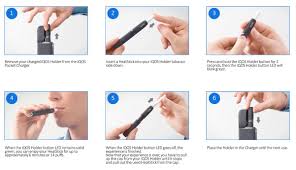
If your IQOS device isn’t charging and you notice a blinking light, it can be frustrating—especially when you rely on it regularly. The blinking indicator is actually your device’s way of communicating that something isn’t working properly. Instead of assuming it’s broken, it’s better to understand what those signals mean and how to fix the issue step by step.
This guide walks you through the most common reasons why an IQOS device may not charge and what you can do to troubleshoot it safely.
Understanding the Blinking Light
IQOS devices use LED indicators to show charging status and errors. A blinking light usually means one of the following:
- The battery is too low or completely drained
- There’s a connection issue with the charger
- The device is overheating or too cold
- A temporary system error has occurred
- The charging cable or adapter isn’t working properly
The exact meaning can vary depending on the model, but in general, blinking = attention needed.
Step 1: Check the Charging Cable and Adapter
Start with the basics. Many charging issues come from faulty accessories rather than the device itself.
- Make sure the USB cable is not damaged or bent
- Try using a different cable if you have one
- Use the original adapter or a reliable power source
- Avoid charging from unstable sources like low-quality power banks
Sometimes, simply switching the cable solves the problem immediately.
Step 2: Clean the Charging Port
Dust and debris can block proper contact between the charger and your IQOS device.
- Inspect the charging port carefully
- Use a dry cotton swab or soft brush to clean it
- Avoid using water or metal objects
Even a small amount of dirt can interrupt charging.
Step 3: Check Battery Temperature
IQOS devices are sensitive to temperature.
- If the device is too hot, let it cool down
- If it’s too cold, bring it to room temperature
- Avoid charging in extreme heat or cold environments
Temperature-related issues are a very common cause of blinking lights.
Step 4: Perform a Reset
A simple reset can fix many internal glitches.
- Press and hold the power button for about 10 seconds
- Wait until the device vibrates or the light changes
- Release and try charging again
This helps refresh the system and clear minor errors.
Step 5: Charge for Longer
If your device battery is fully drained, it may not respond immediately.
- Plug it in and leave it for at least 15–30 minutes
- Even if no light appears at first, give it time
- Check again after some time to see if charging starts
Deep discharge can delay the charging response.
Step 6: Try a Different Power Source
Sometimes the issue isn’t the device—it’s the power supply.
- Use a wall outlet instead of a laptop USB port
- Avoid using damaged extension boards
- Try a different socket
A stable power source is essential for proper charging.
Step 7: Look for Physical Damage
Check your device carefully.
- Is the charging port loose?
- Are there cracks or signs of water exposure?
- Does the device heat up abnormally?
If you notice physical damage, it may require professional repair or replacement.
Step 8: Firmware or Internal Errors
In some cases, the issue could be internal.
- The device may have a firmware glitch
- Repeated blinking without charging could indicate a deeper issue
If none of the basic steps work, it’s likely not something you can fix at home.
When to Seek Help
If you’ve tried everything and the device still won’t charge:
- The blinking continues with no improvement
- The device doesn’t respond at all
- Charging starts but stops randomly
At this point, it’s best to contact official support or visit a service center.
Prevention Tips
To avoid future charging problems:
- Always use original or high-quality accessories
- Keep the device clean and dry
- Avoid overcharging or leaving it plugged in overnight regularly
- Store it at normal room temperature
- Charge it before the battery fully drains
Good habits can significantly extend your device’s lifespan.
Final Thoughts
A blinking IQOS device isn’t always a serious problem—it’s often a warning that something needs attention. In most cases, the issue can be solved with simple steps like cleaning the port, changing the cable, or resetting the device.
However, it’s also important to remember that these devices contain nicotine and are intended for adult use only. If you’re under 18, it’s best to stay informed about the risks and avoid using them altogether.