
How to Fix IQOS ILUMA i One

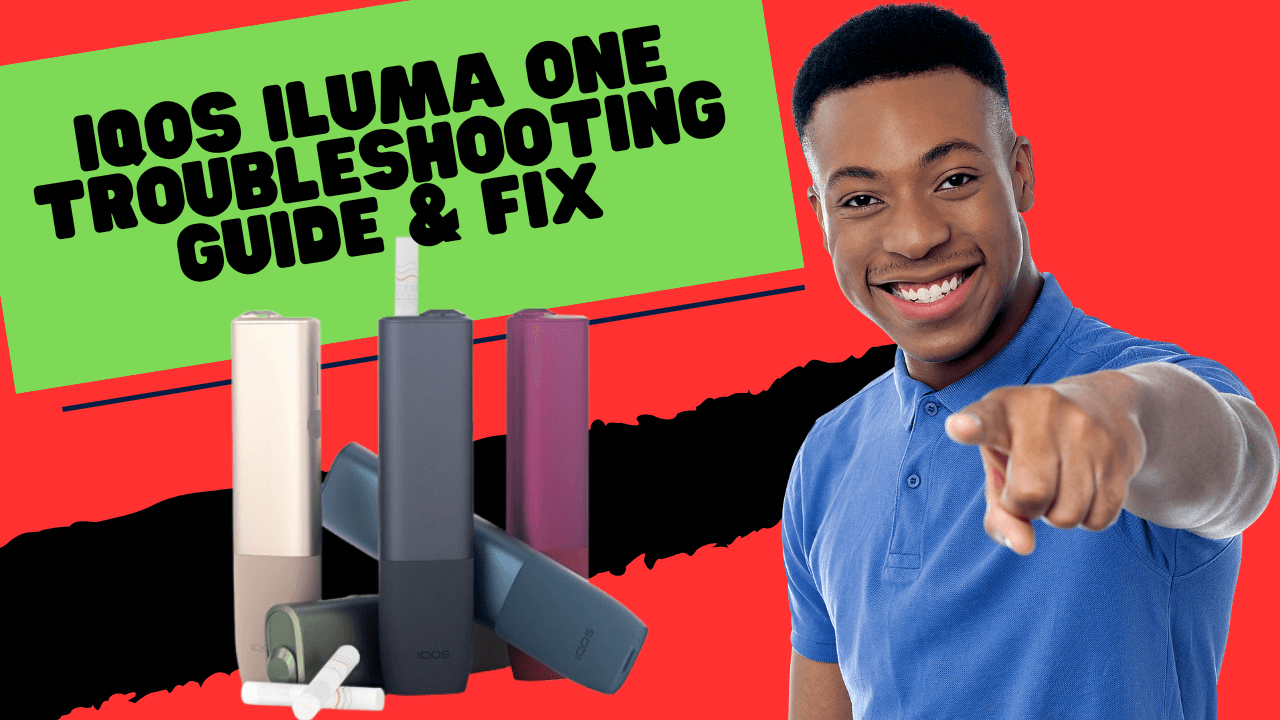
IQOS ILUMA i One is a compact and advanced heated tobacco device that uses induction heating technology instead of a blade. It is designed to work with TEREA sticks and offers a cleaner, more convenient experience compared to older IQOS models.
Despite its modern design, users may still encounter issues such as the device not heating, weak vapor, blinking lights, charging problems, or failure to detect sticks. Fortunately, most of these problems can be fixed with simple troubleshooting steps.
This guide covers all common issues and how to fix them safely and effectively.
Understanding How IQOS ILUMA i One Works
Before troubleshooting, it’s important to understand how the device functions:
- It uses induction heating (no blade inside)
- Works only with TEREA sticks
- Automatically detects stick insertion
- Has LED indicators for status and errors
- Powered by a built-in rechargeable battery
Because of this design, problems usually occur due to:
- Battery issues
- Device temperature
- Internal dirt or obstruction
- Stick-related problems
- Software glitches
1. Device Not Turning On
Possible Causes:
- Battery completely drained
- Charging issue
- Internal system glitch
How to Fix:
Step 1: Charge the Device
Plug the device into a charger using the original cable. If the battery is fully drained, it may take a few minutes before any light appears.
Step 2: Check Charging Cable
Make sure the cable and adapter are working properly. Try another cable if necessary.
Step 3: Reset the Device
Press and hold the power button for about 7–10 seconds until the lights blink. This resets the internal system.
2. Device Not Heating
Causes:
- Low battery
- Device overheating or too cold
- Faulty stick
- Internal error
Fix:
Step 1: Ensure Battery Is Charged
A low battery may not provide enough power for heating.
Step 2: Check Temperature Conditions
If the device is too hot or too cold, it may not start heating. Let it return to normal room temperature.
Step 3: Try Another Stick
Sometimes the issue is with the stick itself, not the device.
Step 4: Reset Device
A reset often fixes temporary software or detection issues.
3. Weak Vapor Production
Causes:
- Low battery
- Old or dry TEREA sticks
- Airflow blockage
- Improper use
Fix:
Step 1: Fully Charge the Device
Power directly affects heating performance.
Step 2: Use Fresh TEREA Sticks
Old or poorly stored sticks produce less vapor.
Step 3: Check Airflow
Inspect the cap and airflow paths. Clean gently with a dry cotton swab.
Step 4: Adjust Puffing Style
Take slow, steady puffs instead of quick or very strong draws.
4. Burnt Taste
Causes:
- Overheating from continuous use
- Dry or low-quality sticks
- Improper storage
Fix:
Step 1: Allow Cooling Time
Avoid using the device repeatedly without breaks.
Step 2: Replace Stick
Use a fresh stick if the taste is burnt.
Step 3: Store Sticks Properly
Keep TEREA sticks in a cool, dry place away from sunlight.
5. Device Not Detecting Stick
Causes:
- Incorrect insertion
- Dirt or debris inside holder
- Faulty stick
Fix:
Step 1: Insert Stick Correctly
Insert the stick straight without twisting or forcing it.
Step 2: Inspect Holder
Look inside the chamber for any leftover tobacco or debris.
Step 3: Clean Gently
Use a dry cotton swab or toothpick to remove any blockage.
Step 4: Try Another Stick
If the issue persists, the stick may be defective.
6. Blinking Lights (White, Yellow, Red)
LED indicators help identify problems.
White Blinking:
- Temperature issue
Fix:
Let the device warm up or cool down to normal conditions.
Yellow Blinking:
- Low battery
Fix:
Charge the device.
Red Blinking:
- Device error
Fix:
Reset the device. If the problem continues, it may require professional repair.
7. Charging Problems
Causes:
- Dirty charging contacts
- Faulty cable or adapter
- Battery issue
Fix:
Step 1: Clean Charging Port
Use a dry cloth or cotton swab to remove dust or residue.
Step 2: Use Original Charger
Using the correct cable ensures stable charging.
Step 3: Try Different Power Source
Plug into another adapter or USB port.
Step 4: Wait for Response
If the battery is fully drained, allow some time before it starts charging.
8. Device Overheating
Causes:
- Continuous usage
- High external temperature
- Internal malfunction
Fix:
Step 1: Stop Using Immediately
Allow the device to cool down.
Step 2: Avoid Hot Environments
Do not leave the device in direct sunlight or hot areas.
Step 3: Restart Device
After cooling, reset the device.
Conclusion
The IQOS ILUMA i One is a reliable and advanced device, but like any electronic system, it can occasionally face issues. Most problems—such as weak vapor, detection errors, or charging issues—are usually caused by simple factors like low battery, improper usage, or minor blockages.
By following the steps in this guide—charging properly, cleaning regularly, using fresh sticks, and resetting when needed—you can fix most problems quickly and keep your device working smoothly.